Interactive demo

See it working, right here in your browser

These are seven of the screens a KindStock shop uses every day: the dashboard, the till, the intake station, the donor kiosk, the customer display, reports and admin. Every one below is a real screenshot from a demonstration shop. Click through at your own pace, or let the guided tour show you round.

Nine stops  ·  about two minutes  ·  nothing to install

The real screens

Pick a screen and have a look round

Real screenshots, filled with sample data from a demonstration shop. No figures here are promises; they are just there so you can see how it reads. Hover over a numbered marker, or tab to it, to see what you are looking at.

Every screen is shown in full below. Turn JavaScript on to flick between them or take the guided tour.

Dashboard
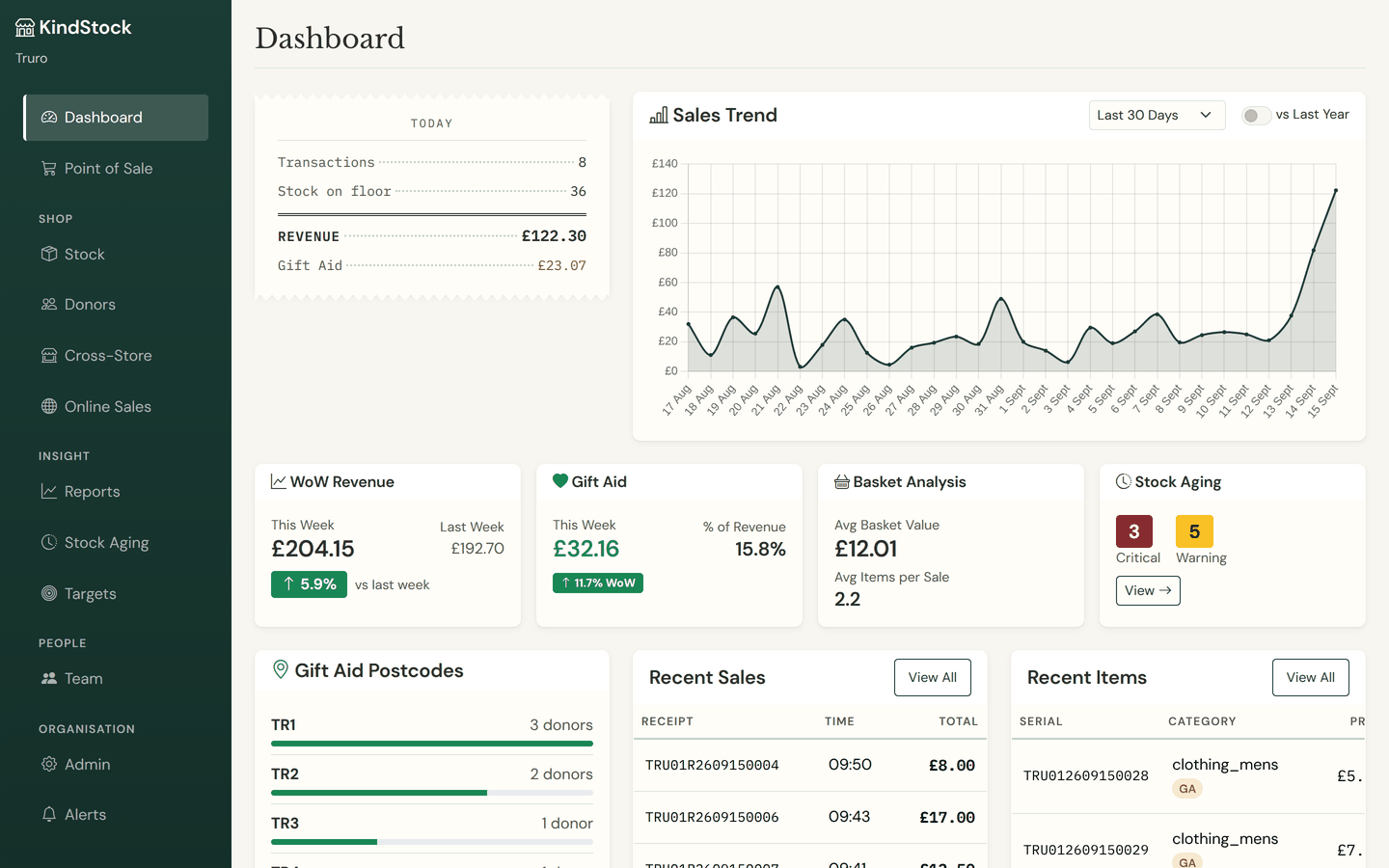
The KindStock dashboard for a demonstration shop: a Today tape showing 8 transactions, 36 items of stock on the floor, £122.30 of takings and £23.07 of Gift Aid, a sales trend chart, and cards for week-on-week revenue, Gift Aid, basket analysis and stock ageing.
The dashboard, as an admin sees it first thing.

Till

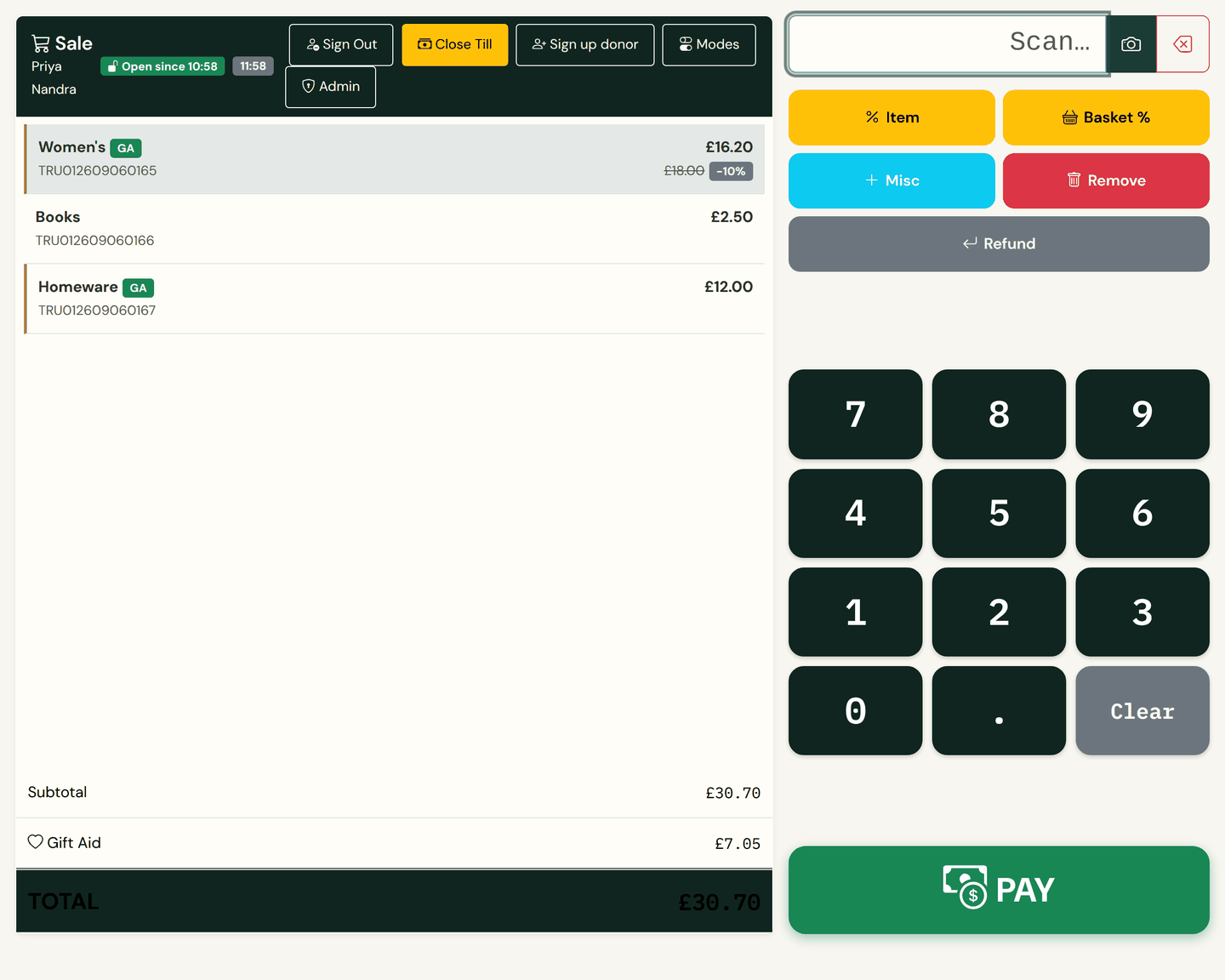
The KindStock till with a three-item basket: a women's clothing line marked down 10% with its £18.00 ticket price struck through, green GA chips on the two Gift Aid lines, a £7.05 Gift Aid line under the subtotal, and the keypad and PAY button on the right.
The till, mid-sale, with three items in the basket.

Intake

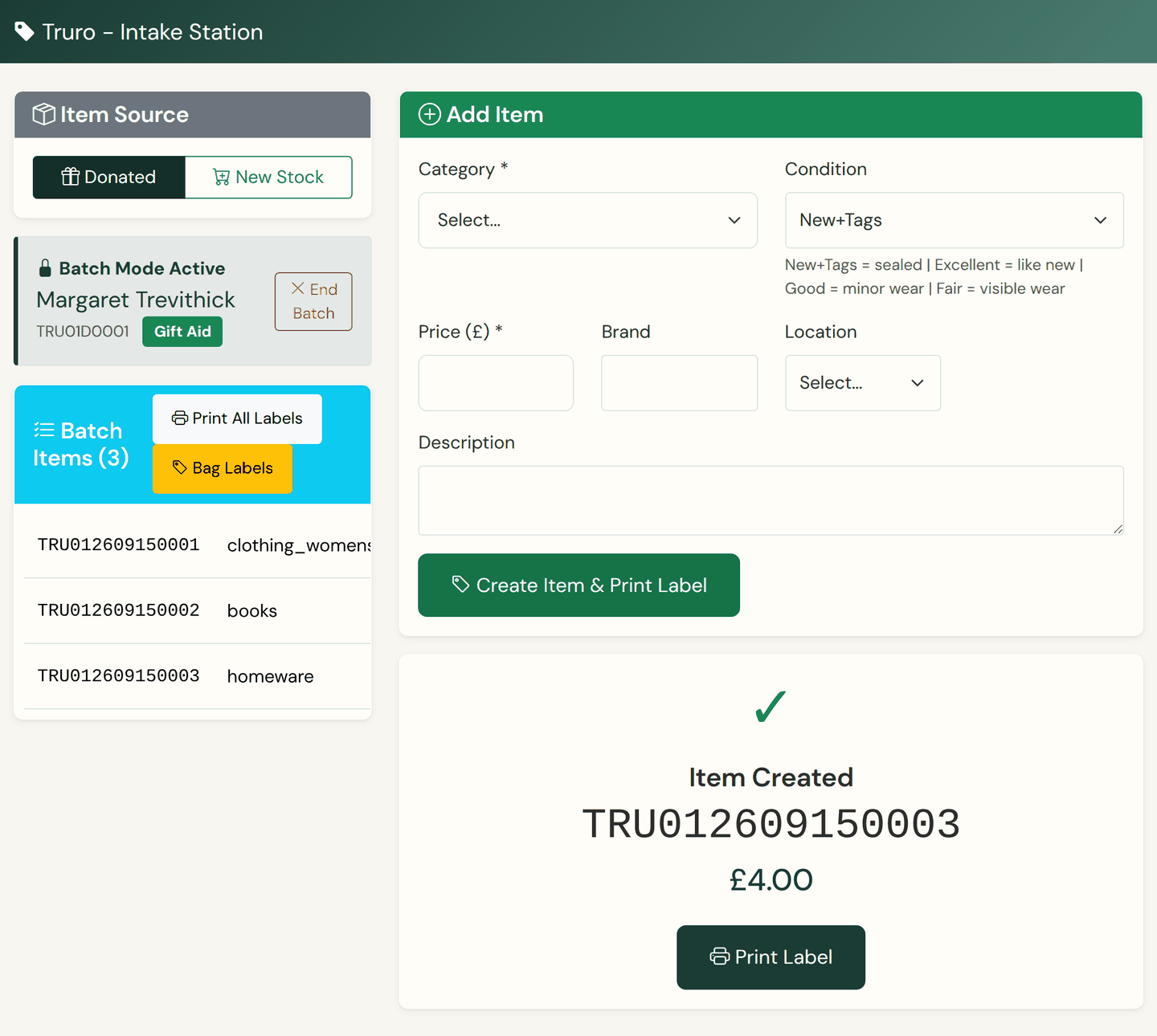
The intake station in batch mode: a locked donor with a Gift Aid badge and an End Batch button, three items already in the batch, the Add Item form with category, condition, price, brand, location and description, and an Item Created panel with a Print Label button.
The intake station, part way through a bag of donations.

Donor kiosk

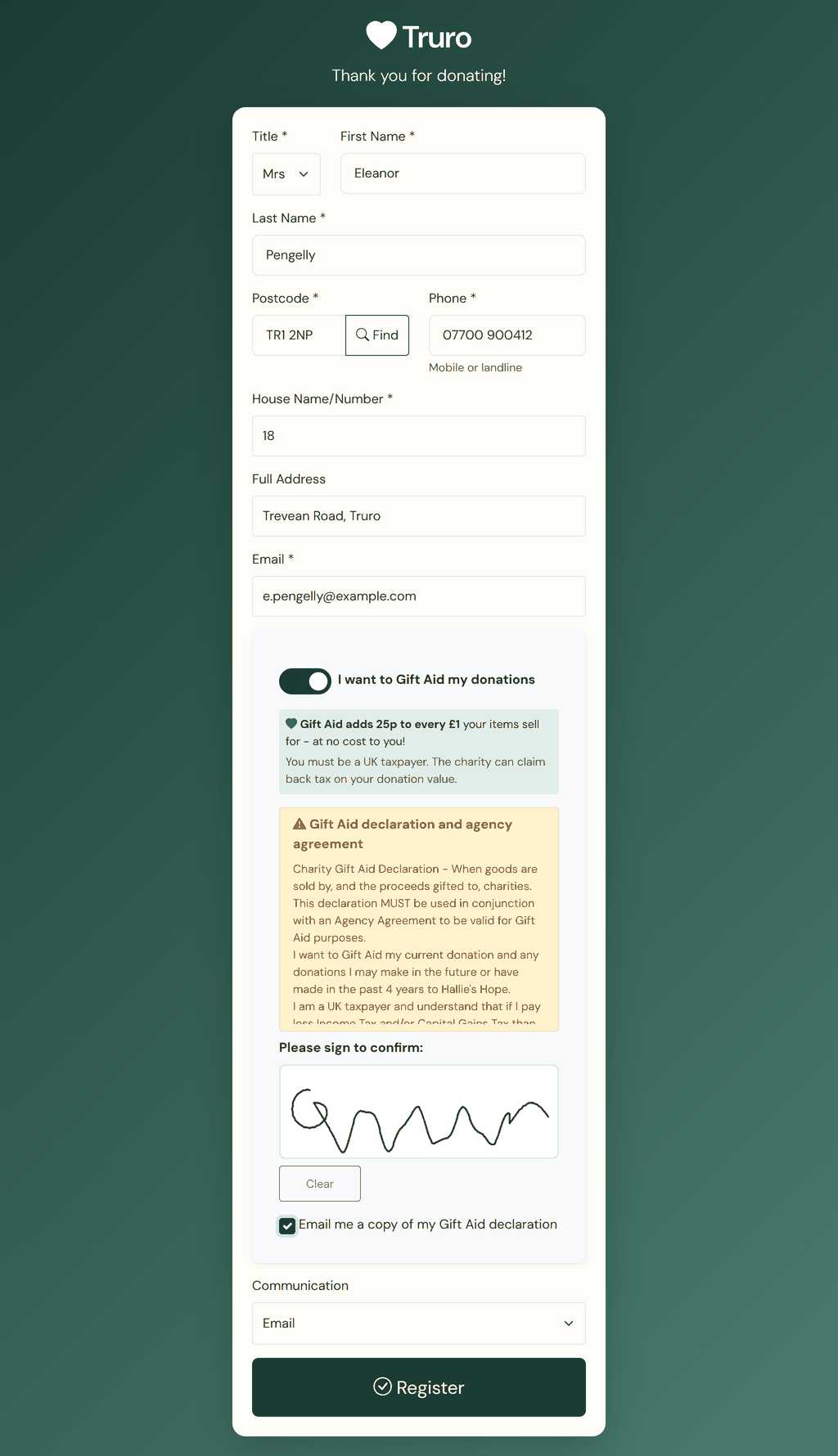
The donor sign-up kiosk on a tablet: title, name, postcode with a Find button, phone, address and email, the Gift Aid switch with the 25p wording, the charity's full declaration and agency agreement, a signature, an Email me a copy tick, a communication preference and a Register button.
The donor kiosk on a tablet at the counter, filled in and signed.

Customer display

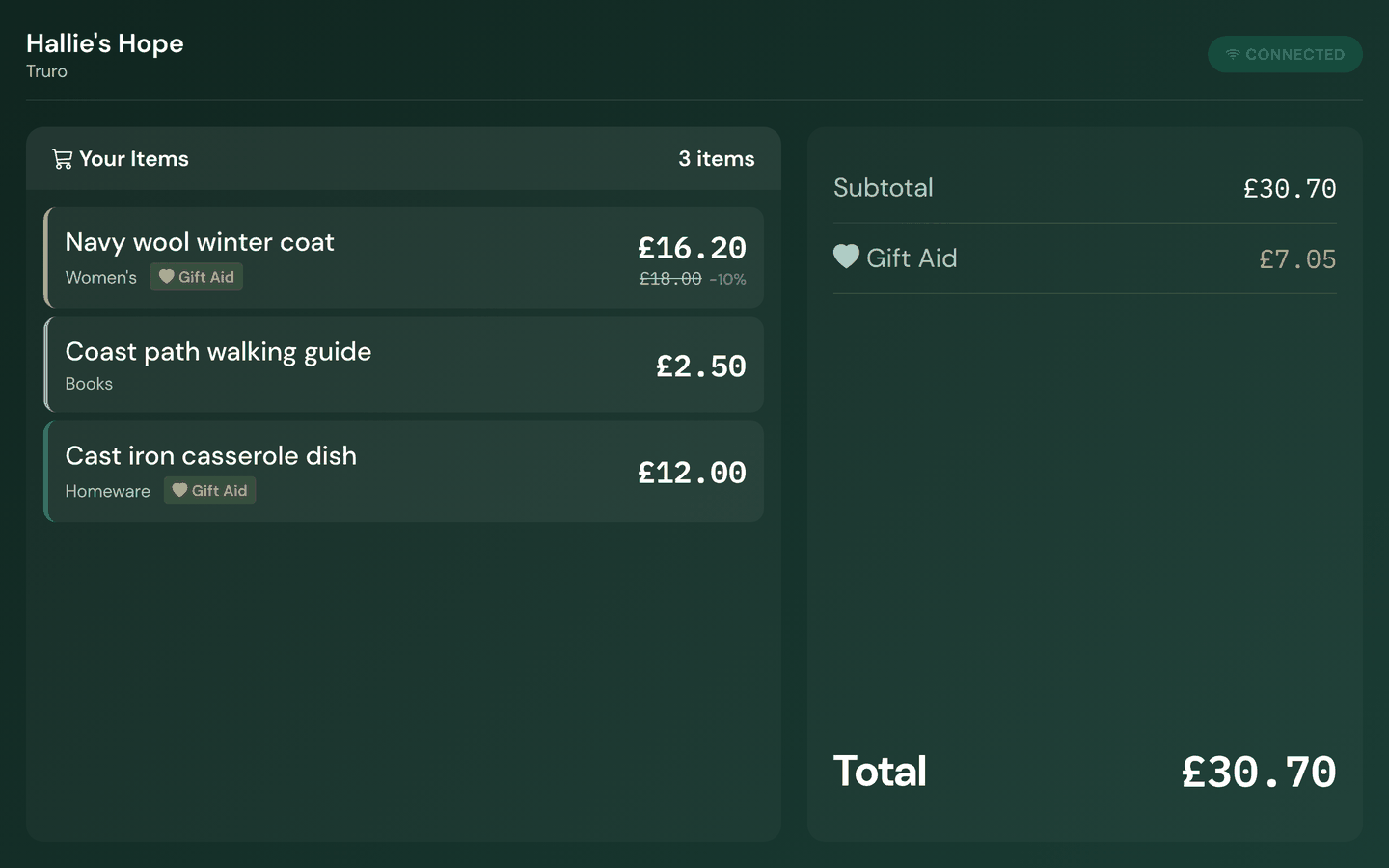
The customer-facing display mid-sale: the charity name and shop at the top with a connected badge, three items listed in the charity's colours, Gift Aid badges on two of them and a 10% reduction on the first, and a totals panel showing the subtotal, the Gift Aid and a £30.70 total.
The customer display, mirroring the till on a second screen.

Reports

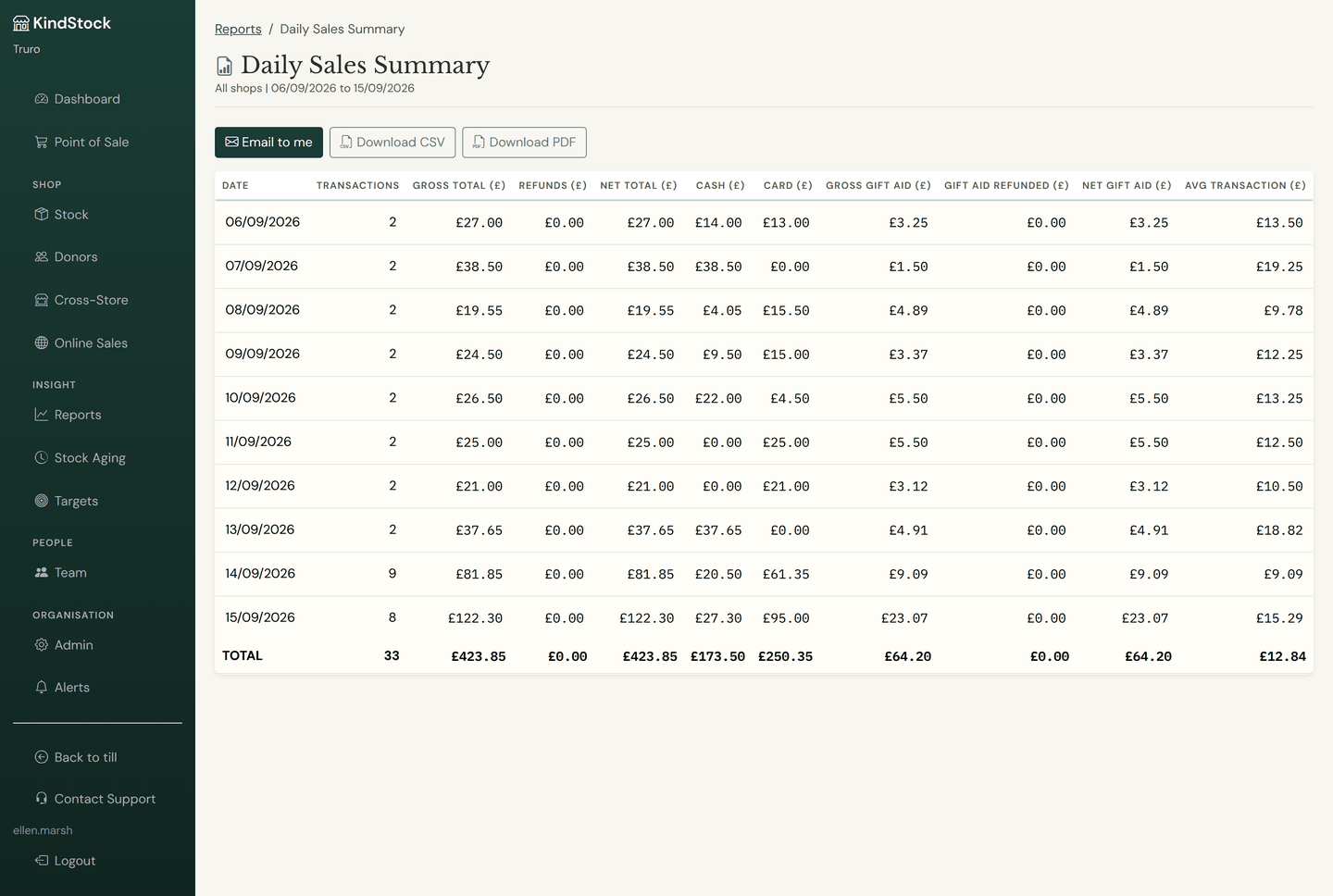
The Daily Sales Summary open on screen: Email to me, Download CSV and Download PDF buttons above a sortable table of trading days with transactions, gross total, refunds, net total, cash, card, gross Gift Aid, Gift Aid refunded, net Gift Aid and average transaction, totalled at the foot.
One of the fifty reports, open on screen rather than downloaded.

Admin

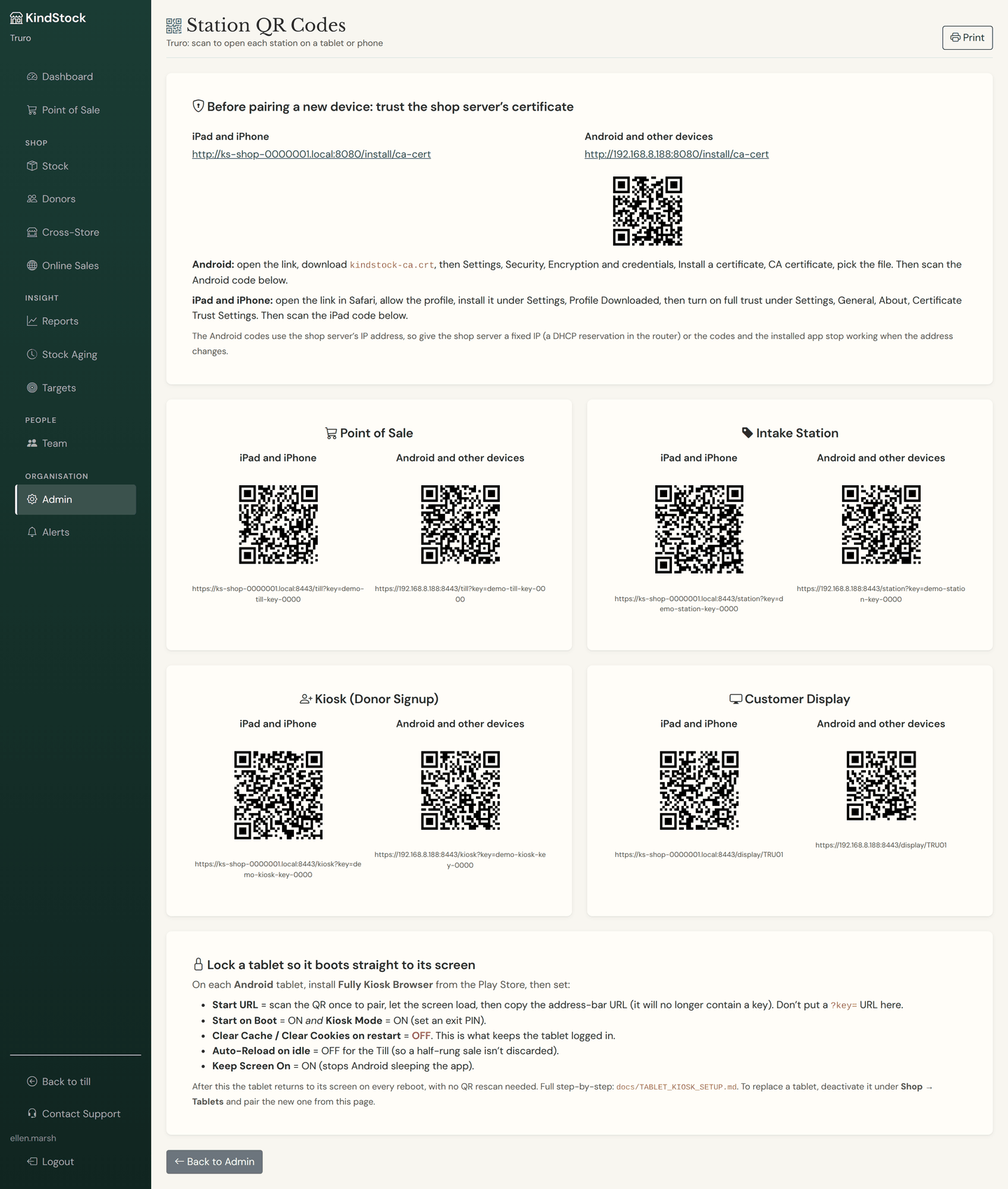
The Station QR codes page in admin: the certificate step with one link for iPads and one for Android, then pairing codes for the till, intake station, donor kiosk and customer display, each with an iPad code and an Android code, and instructions for locking a tablet to its screen.
Admin: pairing a new tablet to a station.

Real screens, sample data from a demonstration shop. Every screen here is part of the standard package. Card readers and HMRC claim files are still in build, and we will not switch either on until we have proven them.

What the customer takes away
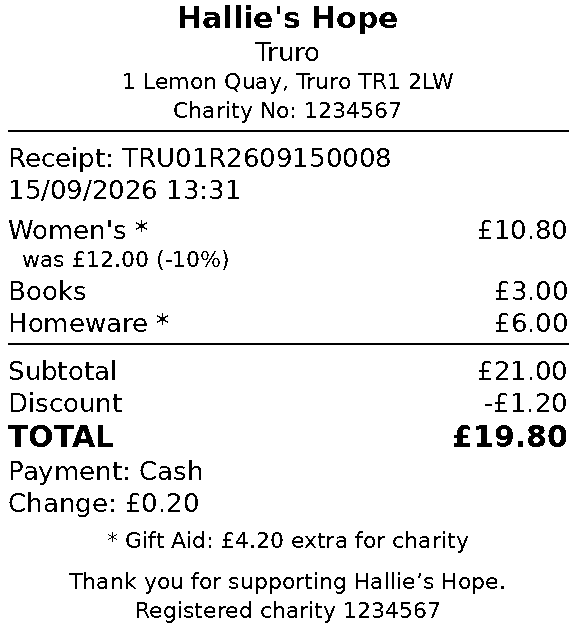
A printed KindStock receipt: Hallie's Hope, the shop, its address and charity number, three category lines with a 10% reduction shown on one, subtotal, discount, total, payment and change, and a line reading Gift Aid £4.20 extra for charity.
The receipt, off the shop's own printer: your charity's name first, then the shop, address and charity number, the lines by category with any reduction shown, and the Gift Aid the sale added.
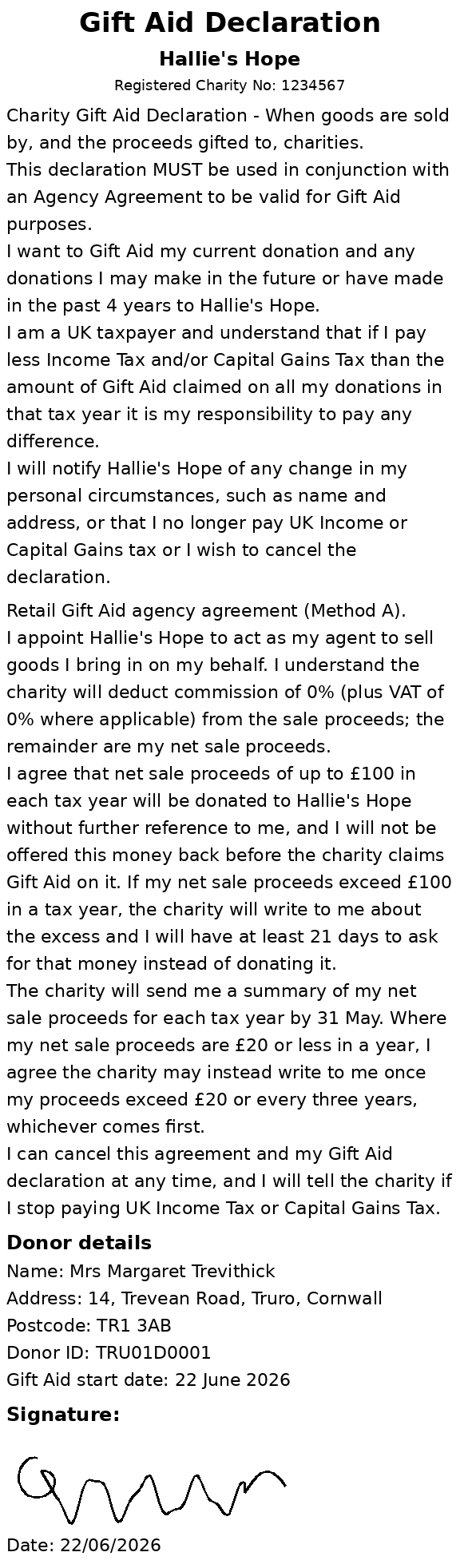
A printed Gift Aid declaration: the charity's registered declaration wording, the Method A agency agreement, the donor's name, address and donor ID, and their signature with the date.
The declaration the donor signs, printed on the receipt printer or on label tape, opened as a PDF, or emailed to them.

The demo ends where the hardware begins

What you can't click through is the box: the till, printers, scanner and in-shop server that arrive configured and working together. Book a call and we'll show you the real thing, live.